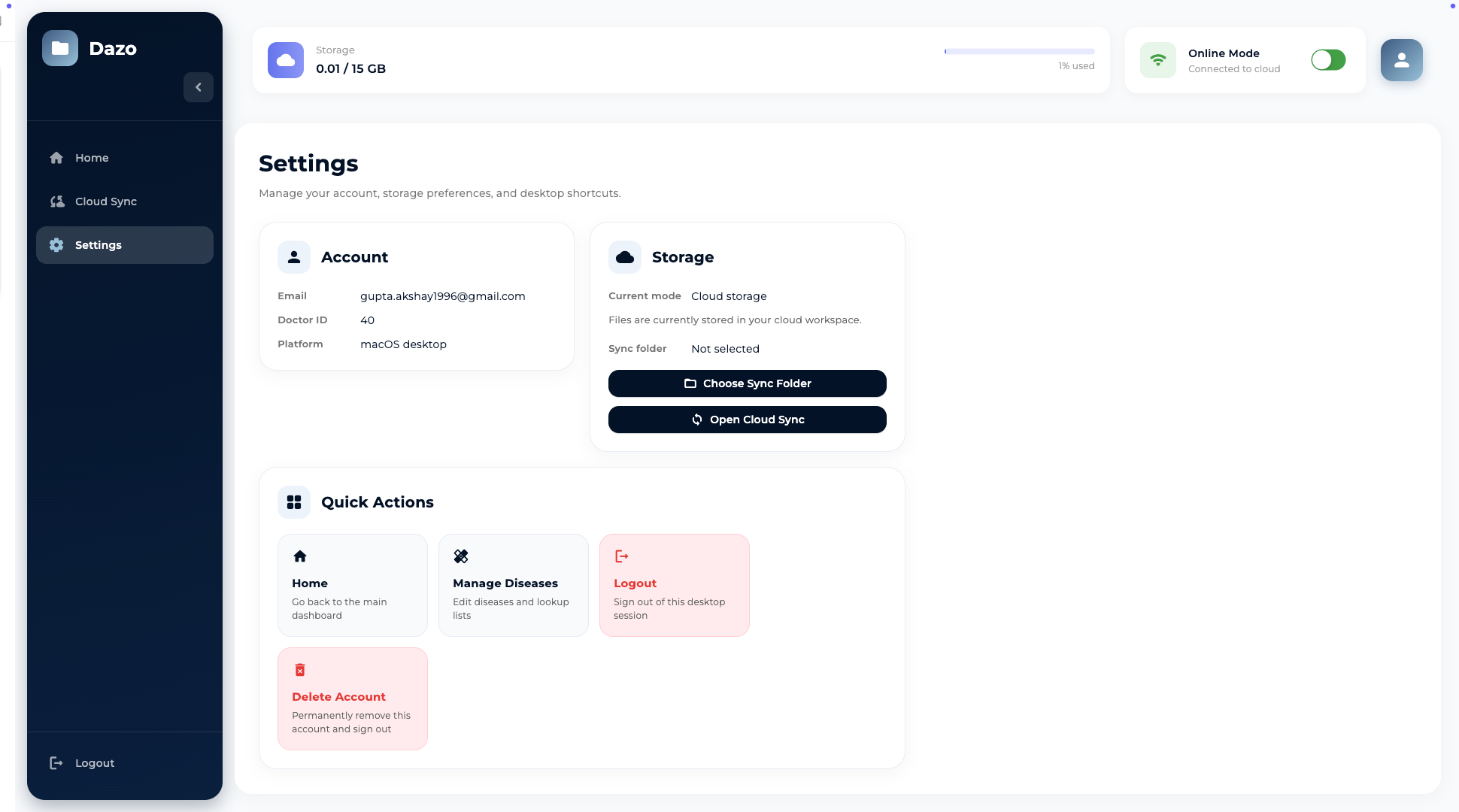
A focused three-pane desktop app: Home, Cloud Sync and Settings. Browse the full grid, filter by use case, multi-select files, and run a proper Sync Center that pulls data from cloud or directly over WiFi.
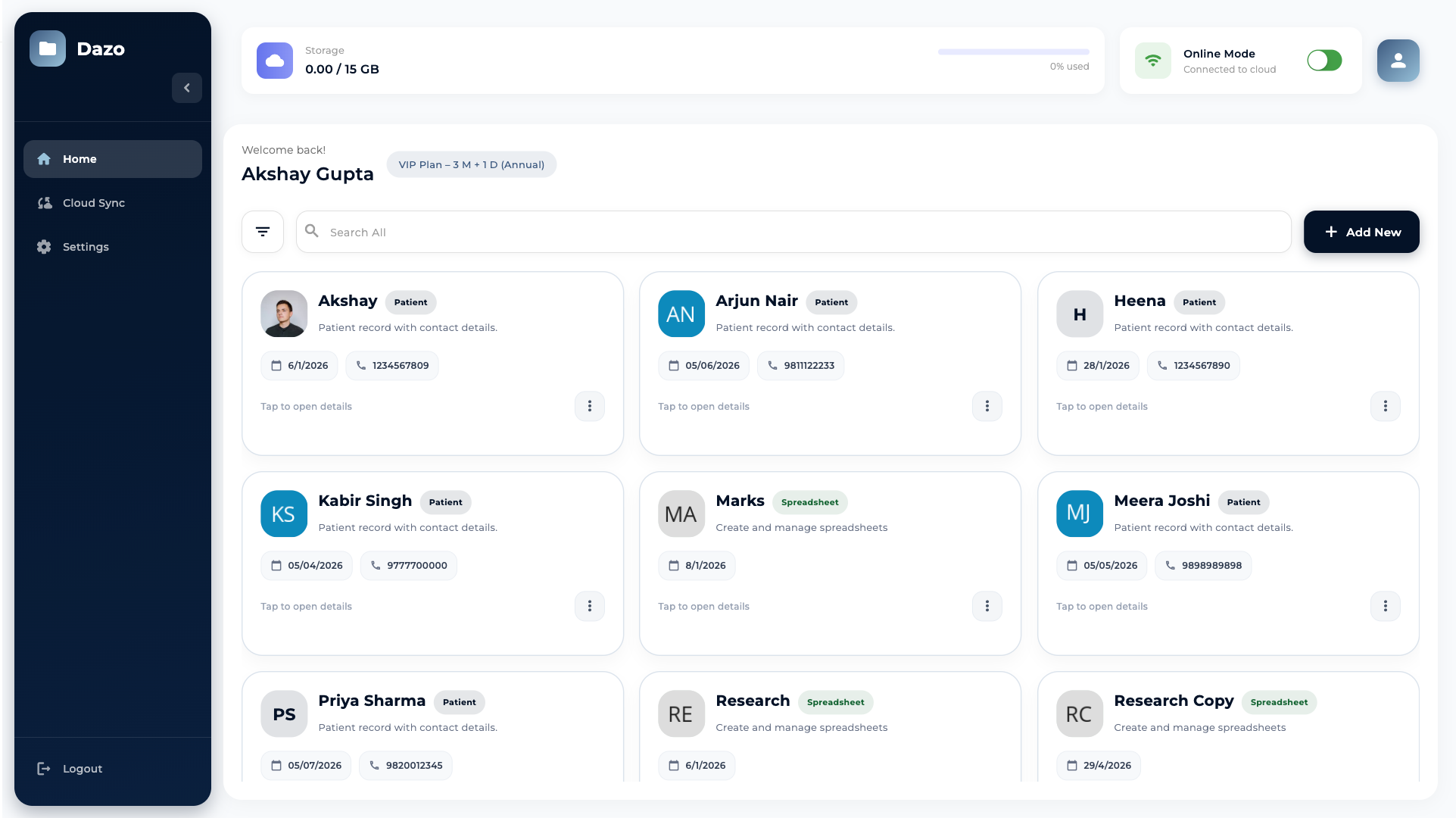
Sign in with the same credentials you use on mobile. Dazo pulls your storage mode and use cases over, so the desktop feels familiar from the very first second.
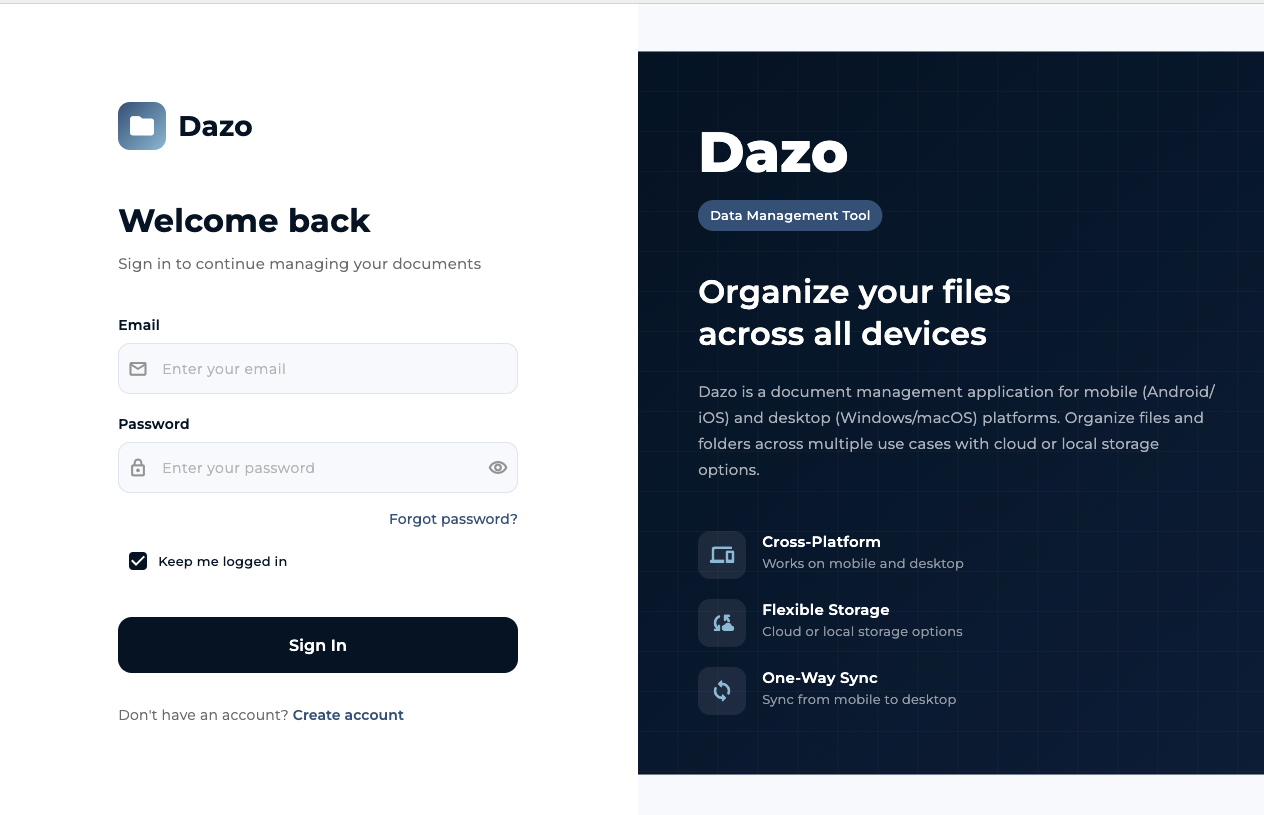
A spacious grid of every record you own — color-coded by use case, searchable, filterable, and one click from adding a new one.
Show only Patients, Events, Research or Spreadsheets.
Find any record across all types.
Opens the unified Create New picker.
Toggle live cloud or local sync-folder view.
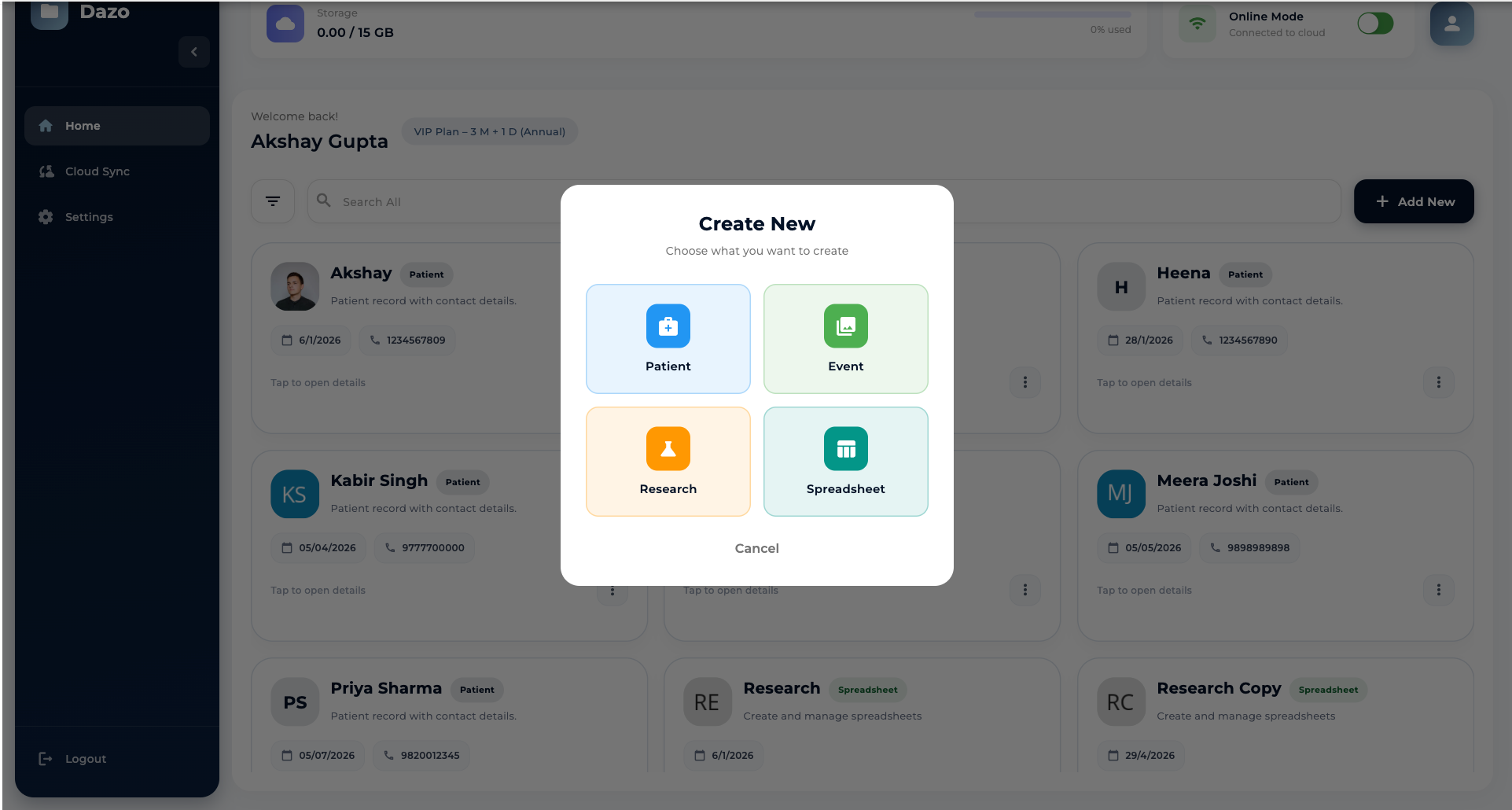
The same Create New picker as mobile — Patient, Event, Research, Spreadsheet. Each one opens a tailored add screen optimized for the desk.
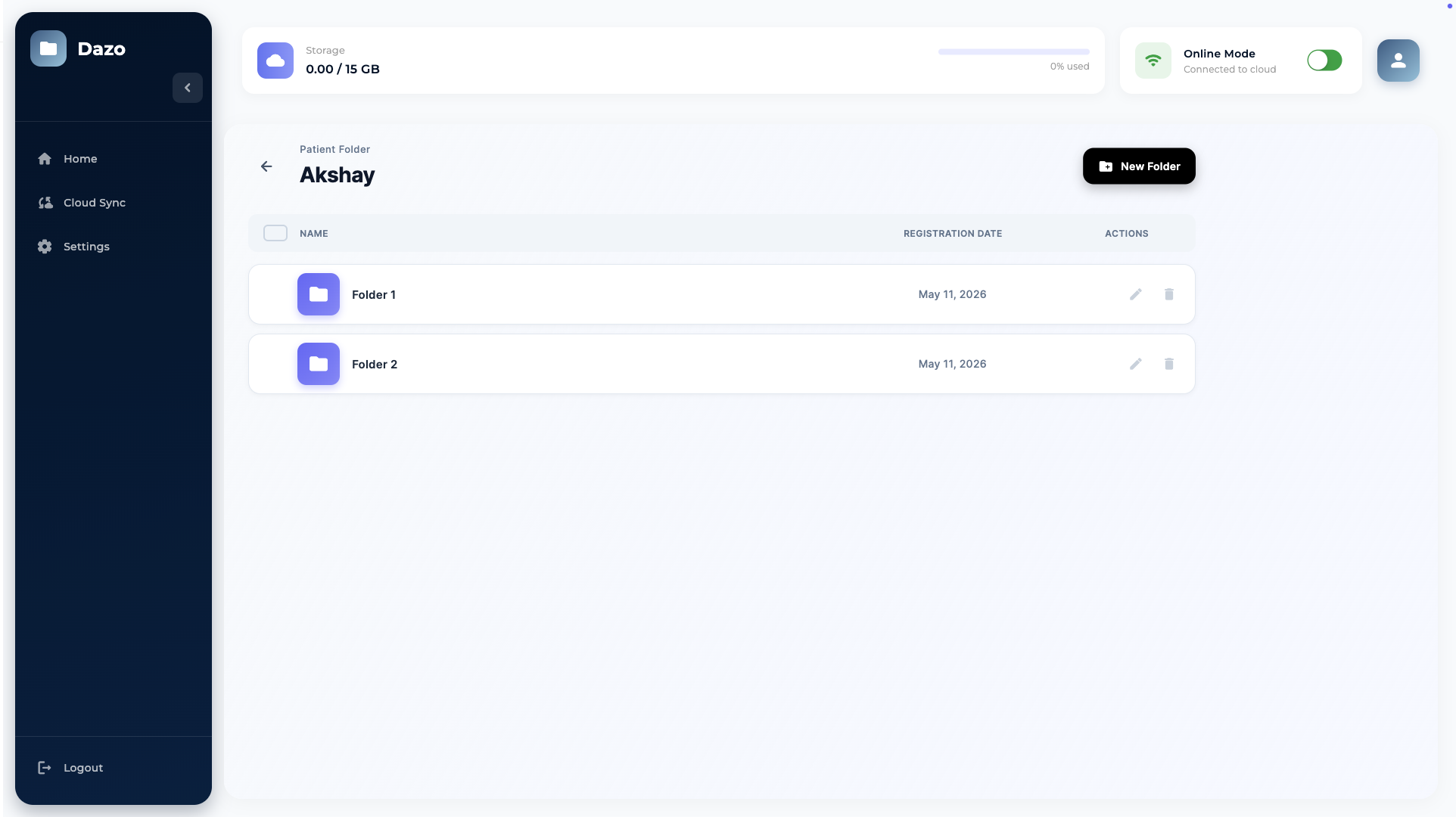
Inside a patient, you get a clean list of subfolders with names, registration dates and inline rename / delete. Add new folders with a single button.
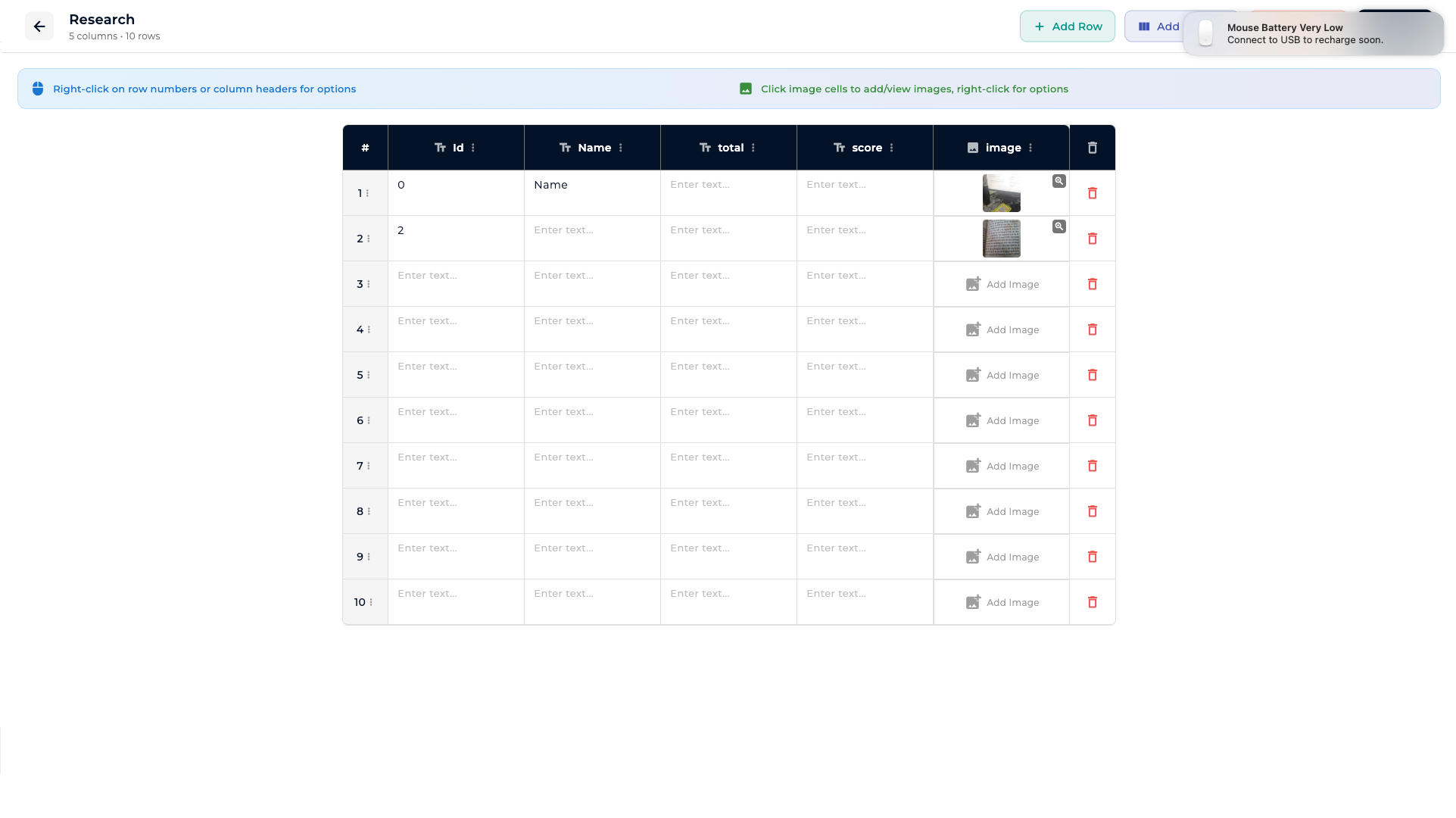
Right-click row numbers or column headers for options. Click image cells to add or view images. Mix text, numbers and image columns however you like.
A dedicated section in the desktop app with two transfer methods: Cloud Sync from Firebase, and WiFi Sync from a paired mobile device.
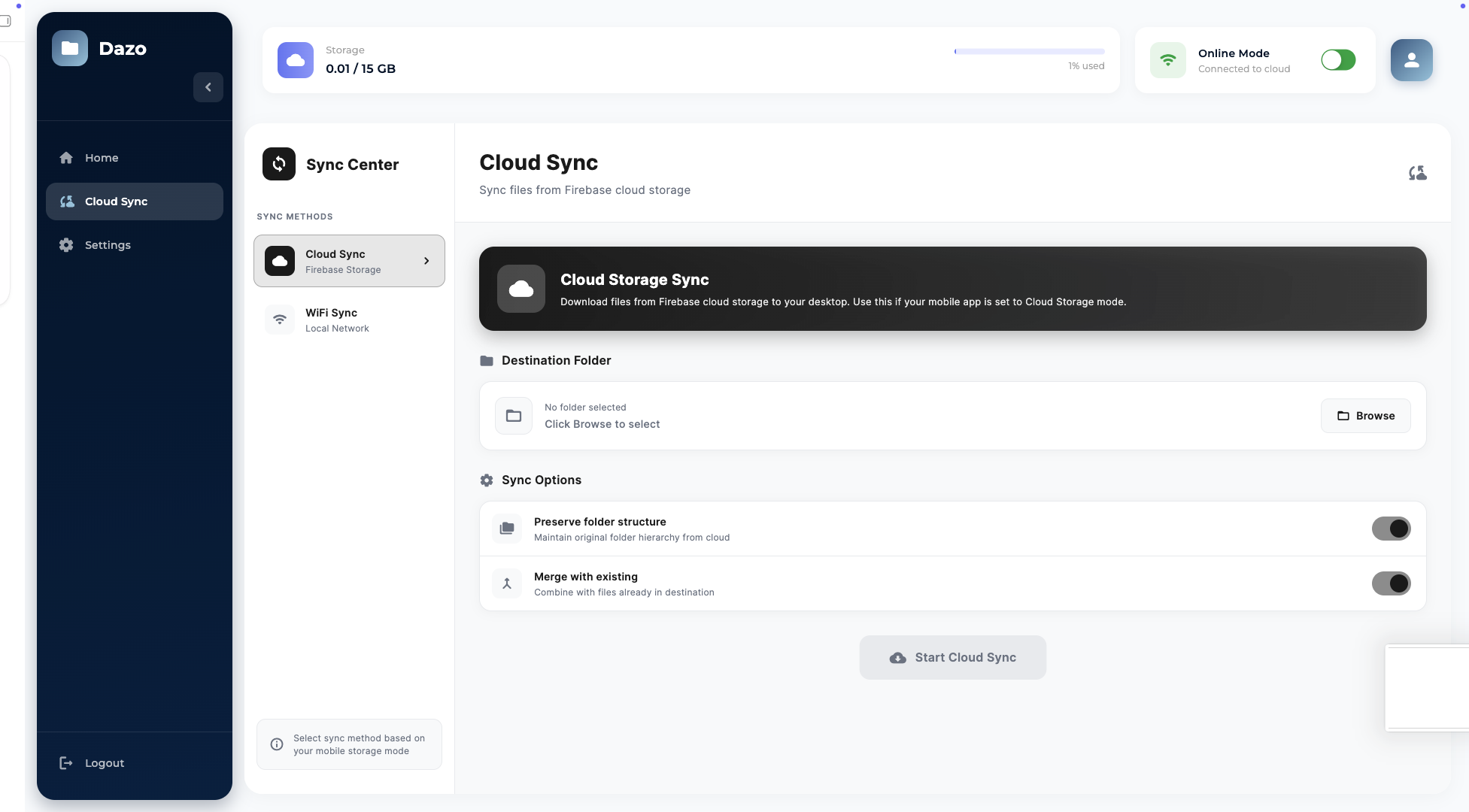
Mirror Firebase Storage into any folder on your machine. Choose to preserve hierarchy and merge with existing — track the last sync time.
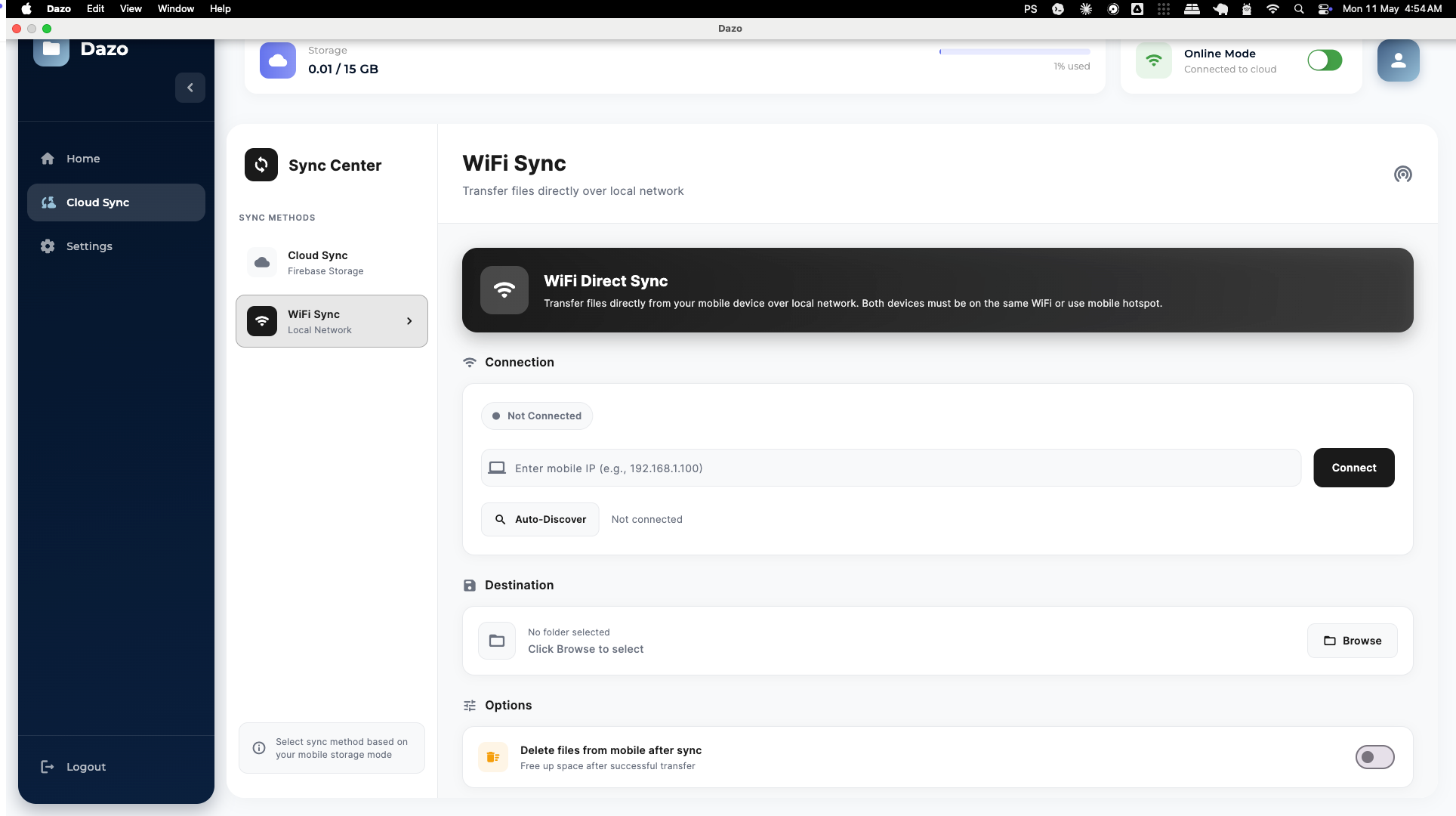
Auto-discover the mobile device or connect manually by IP. Pick a destination folder, optionally delete from mobile after sync, and pull.
See your account & doctor ID, your current storage mode (cloud or local), your sync folder, plus quick-action shortcuts to Home, Manage Diseases, Logout and Delete Account.